
Quick LinkedIn Tutorial
Make
sure you have a free LinkedIn account and are logged in:
1.
IDMBpro (or starting from some other source):
In an attempt to be
generic, I’ll search for a fake company named “Garry Productions”:
2.
IDMBpro:
I find the company, but
they don’t have a website or email listed. You could try Googling, but that
isn't often successful.

3. Let's
shift over to
LinkedIn: Search for the company
name (it may help to put it in double-quotes), and then select from the list drop-down
list:

4.
LinkedIn:
On the “Garry Productions”
page, you see staff listed, but they’re not clickable (because this is a free
account):

5.
LinkedIn:
Click on “All filters” at
the top left.
A fly-out (or
“fly-down”) menu appears with lots of
available criteria:

6.
LinkedIn:
I usually scroll down to
the bottom of this fly-out list to where you can enter first name, last name,
or title. My searches usually involve producer, production, acquisition,
creative, development, etc. In other words, people who may not be listed
in IMDBpro. I also keep to just one criteria at a time because
otherwise LinkedIn can eliminate good matches because you're being too specific:

7.
LinkedIn:
If the search brings up an
actual name, instead of “LinkedIn Member”, then you’re in business.
Click the name:

(Note
that on these images, because I’m faking searches, more and more of the
associated data on-screen is
inaccurate the further I drill down, because it's just a test!)
8.
LinkedIn: So here is Garry Alexander.
From here, you can click the
“Contact Info” or
“More” buttons to see if he’s listed a website or
something:

9.
LinkedIn:
I like to scroll down to
the listing of current jobs. This is where you may see that he’s
no longer even
working at “Garry Productions” – so IMDBpro is not current!
He came up in this search because that was one of his PAST jobs.
For this example, that’s what’s happened, and he now works at “Dominion
of Drama”

But here’s where it can get interesting:
That may be the end of the search for Garry Alexander, but maybe it opens
a new opportunity.
Click the logo
beside the current job title and get to a new screen to search for personnel in
that company!
10.
LinkedIn:
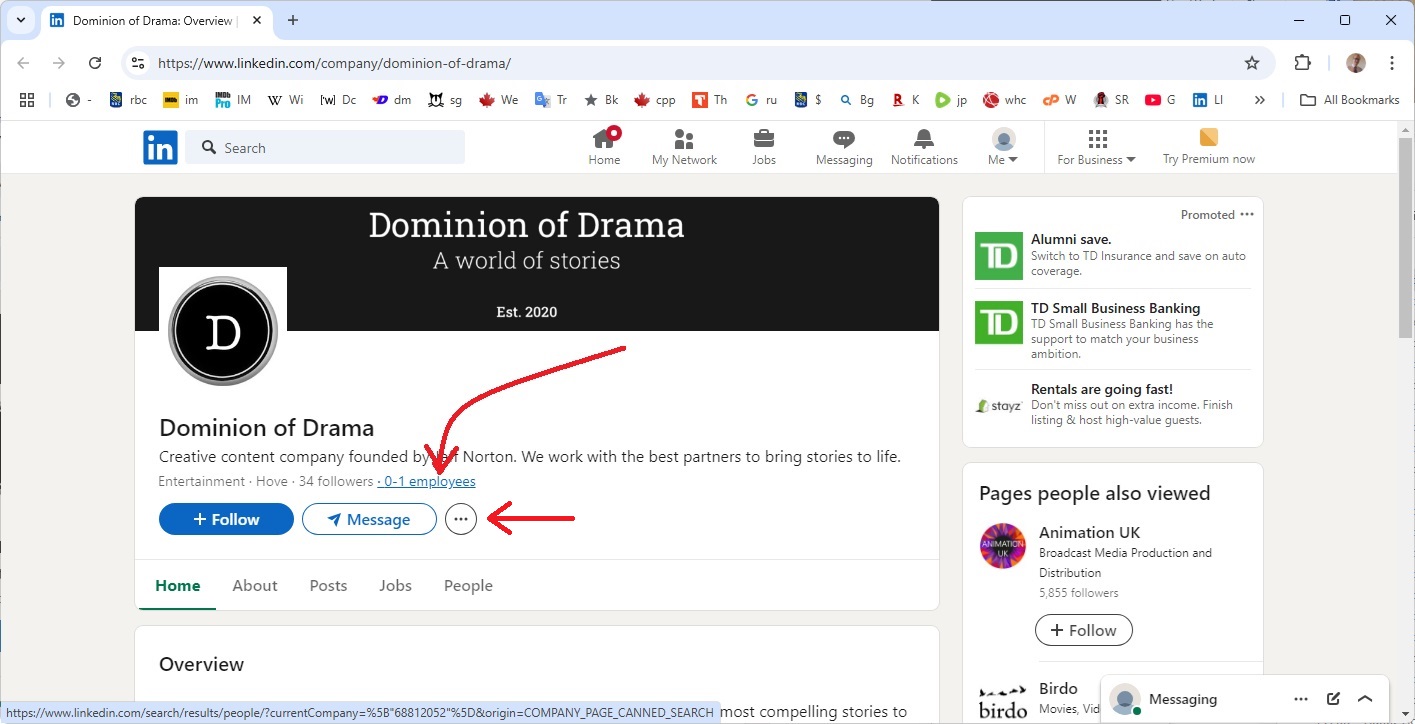
Now we’re on the “Dominion
of Drama” page. Click the “...”
button to see if they’ve listed a website. The "Message" button, on all
"Company-level" profiles, either brings up a mail form that probably goes to
their "info@" email, or may actually open up their "Contact" page on their
website! Especially
cool is the “0-1 employees” link.
It
could say “10-100” or something, which means you’ll suddenly get access to lots of staff!
11.
LinkedIn: Below,
I’ve faked
“Dominion of Drama” so that it has lots of personnel (like, about 57,000 instead
of 0-1!). You see below that we’re
on a page that has all those cool options such as “All Filters”, “Locations”, etc. which you
can use to find someone named “Spielberg” or "Cameron", or someone with a title of
“development”, etc. Remember that while personnel are
listed here as "LinkedIn Member", ie. no name, if you know a name from IMDBpro
or somewhere, and you enter it into the "All filters" searchbox, their LinkedIn
profile will appear (as in #7, above)!

Incidentally,
on this search results page
you can see that "Colleen" has an “IN” button at her
name. When you see this, you can usually send an internal LinkedIn message to
them (called “InMail”) from their profile, for free!
Another characteristic of the free LinkedIn account is that they absolutely do
limit your searches! But it's like Google: Do you really need
2,138,442 results, or just 10 useful ones! LinkedIn lets you have a set
number per month for a free account before it really cuts back. Because
I'm a heavy user, fairly early in the month I start to receive only 3 results
per search. BUT! If you use the filters and search for someone, for
example, with a last name of "Pinnochiosis" (let's say, found in Google or on
IMDBpro), you will be able to view that profile - even if Mr. or Ms Pinnochiosis
was actually the ten thousandth profile in the list. (Maybe LinkedIn
assumes that since you know the name you're somehow connected to Mr. or Ms P or
are an old beer buddy.)

Summarizing: I began my search on LinkedIn with a company, but you could also begin with
a person’s name – just remember to put double-quotes around it.
The quotes help to narrow down your searches in what is a world-wide database,
but be careful because "John Smith" in quotes will
not find "Jonny" or "J" or "Jonathan" Smith. When the results appear,
use the “All Filters” to drill down by current/past company, location,
first/last name, title, etc.
And the
data presented is often more current that I’ve found IMDBpro to be, though IMDBpro is
great because it lists companies/people in our chosen business – without having
to filter through all of the engineers, waitresses, hobbyists and politicians.
All
you need is a free LinkedIn account that contains whatever basic info you need for to
create one
(name, location, an email address, etc.)
So, IMDBpro + LinkedIn...
quite a team!
But
sometimes you still need Google (or whatever search tool).
Let’s say you’ve been to IMDB, found a company but no name, then to
LinkedIn to find the company and some of its staff and a website domain - but no email.
Go to Google and try this:
12.
Google: Search for an email as shown, with
the quotes, such as "@garryproductions.com". Then, on the results page,
use CTRL-F to search for the string on the page, but without the quotes,
@garryproductions.com:
